Cryptomator: A Complete Guide to Securing Your Cloud Data


Do you store your important files in cloud storage services like Google Drive, Dropbox, Microsoft OneDrive, Apple iCloud, or Amazon Drive? Cryptomator allows you to create an encrypted vault within your cloud storage, where only you can access the files using your personal password. This adds an extra layer of security, ensuring your data remains private, even if the cloud provider's security is compromised.
These days, storing files in the cloud has become a common practice for individuals and businesses. Although services like Google Drive, Dropbox, and OneDrive offer convenience, they also present potential security risks. Without proper encryption, your sensitive data may be vulnerable to unauthorized access. This is where Cryptomator comes in, an open source tool designed to provide client-side encryption, ensuring your data is protected before it even reaches the cloud.
In this article, we will explore what Cryptomator is, why it is an excellent choice for cloud data encryption, and how to use it to keep your files secure.
What is Cryptomator?
Cryptomator is a free, open source application that encrypts files before they are uploaded to cloud storage services. Unlike other encryption tools that may be complex or expensive, Cryptomator focuses on simplicity and accessibility, making robust encryption available to everyone. It uses AES-256 encryption, one of the most secure encryption standards, to protect your files.
Cryptomator encrypts your files locally on your computer, which means that even if someone gains access to your cloud account, they won't be able to read the files without the encryption key. This client-side encryption ensures that your data remains private, even from the cloud storage provider.
Key Features of Cryptomator
1. End-to-End Encryption: Cryptomator encrypts your files locally, ensuring they are secure before being uploaded to the cloud. Even if the cloud storage provider's servers are compromised, your data will remain encrypted.
2. Open Source and Transparent: Cryptomator's code is open source, meaning it is available for review by anyone. This transparency builds trust, as the community can verify that there are no hidden vulnerabilities or backdoors.
3. Cross-Platform Compatibility: Cryptomator is available on a variety of platforms, including Windows, macOS, Linux, iOS, and Android. This makes it an ideal choice for individuals and businesses that use multiple devices.
4. Folder-Based Encryption: Instead of encrypting your entire cloud account, Cryptomator creates encrypted vaults where you can store specific files or folders. This allows for more detailed control over what you want to protect.
5. Easy Integration with Cloud Services: Cryptomator works seamlessly with major cloud storage providers, such as Google Drive, Dropbox, OneDrive, and others. You don't need to switch cloud providers; Cryptomator acts as an additional security layer.
Why Cryptomator is a Great Choice for Cloud Encryption
1. Privacy Focus
Unlike many cloud storage services, Cryptomator ensures that neither the cloud provider nor third parties will have access to your files. It encrypts the files on your device before they are sent, meaning your data is protected even if the cloud provider's servers are hacked.
2. Simple and User-Friendly
Cryptomator was designed with simplicity in mind, making it an excellent choice for both beginners and experienced users. The interface is intuitive, and setting up encryption for your files takes only a few minutes. You don't need to be a tech expert to use it, but it offers powerful encryption.
3. Secure File Handling
When using cloud services, your files are often stored without encryption, leaving them vulnerable. With Cryptomator, your files are encrypted and stored in secure containers, known as vaults. These vaults can be created for specific folders or files, allowing you to customize which data you want to protect.
4. Cost-Effective
Cryptomator is free to use on desktops, making it an excellent option for individuals or businesses on a limited budget. For mobile devices, there is a small one-time fee, but considering the security it offers, it is a highly economical solution.
How to Use Cryptomator: A Step-by-Step Guide
Here is a simple guide on how to use Cryptomator to protect your files:
Step 1: Download and Install Cryptomator
You can download Cryptomator directly from the official website. The installation process is simple and the software is available for Windows, Mac, and Linux.
Step 2: Create an Encrypted Vault
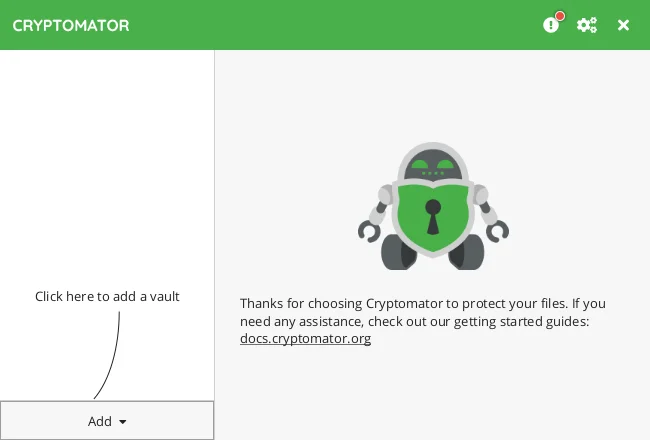
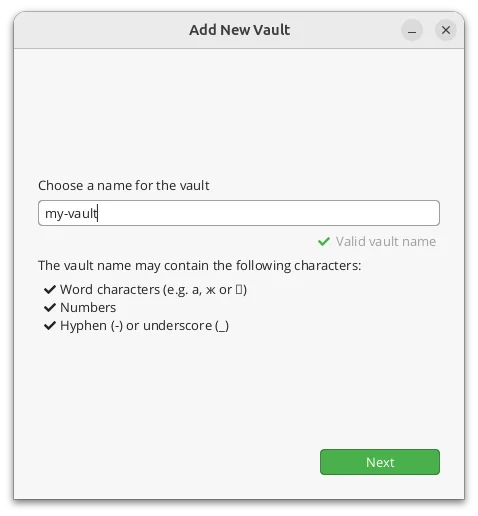
Once installed, open Cryptomator and click ADD to Create New Vault. Choose a name and the location for the encrypted vault.
Choose a name for your Vault:
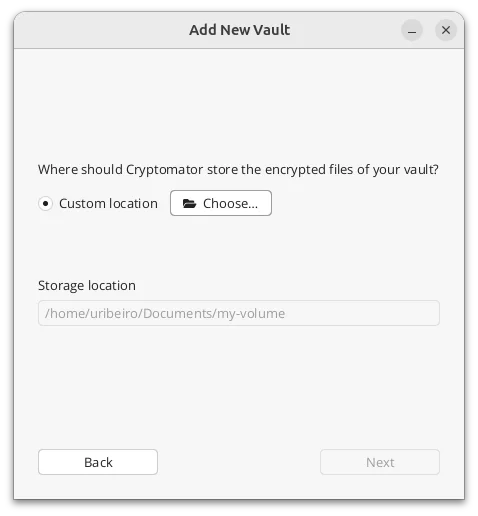
Choose a location for your vault:
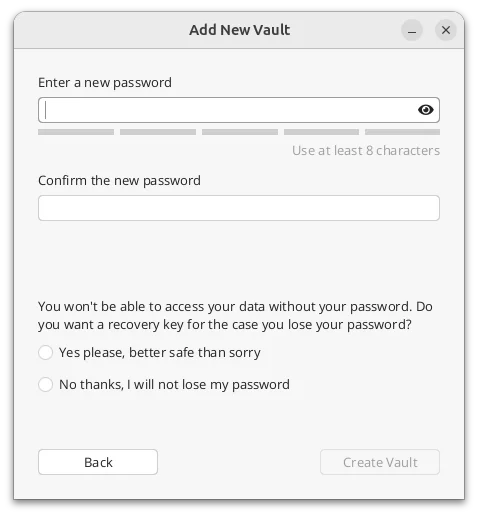
Step 3: Set a Secure Password
Cryptomator will ask you to set a password for the vault. Choose a strong password, as this will be the key to accessing your encrypted files. Cryptomator offers a password strength indicator to help you create a robust password.
Step 4: Add Files to the Vault
After creating the vault, it will appear as a virtual drive on your computer. You can simply drag and drop files and folders to this drive, and they will be automatically encrypted.
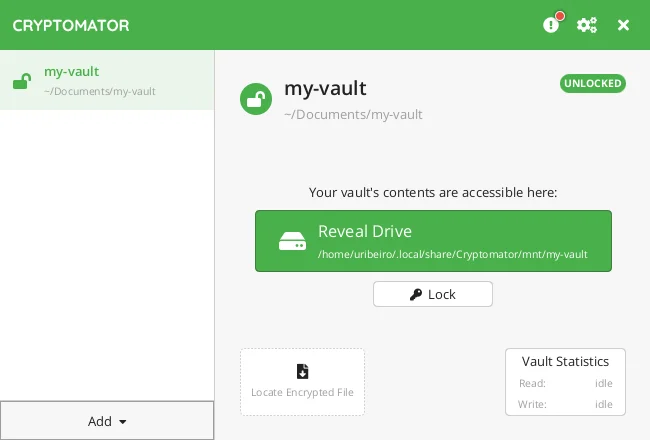
Step 5: Mount and Unmount the Vault
When you are done working with the files, you can unmount the vault to ensure that the files remain protected. Whenever you need to access the files again, simply mount the vault by entering your password.
Conclusion
Cryptomator is an indispensable tool for anyone looking to protect their data in the cloud. Whether for personal or business files, Cryptomator offers a simple, secure, and effective solution for file encryption. With its client-side encryption approach and user-friendly interface, it ensures your data remains private, even on popular cloud services. If you value your privacy and security, Cryptomator is one of the best options available.

Prof. Uirá Ribeiro
Chair do Board do Linux Professional Institute
After years of watching professionals waste hours on simple tasks because they didn't know the right Linux tools, I decided to teach.
Today I'm the author of most of LPI's official Learning Materials and mentor to over 14,000 certified students.
That was just one piece. The course teaches the whole path — from your first command to exam day.